How to Record Screen With Audio on Any Device in 2026
Learn how to record screen with audio on any device in 2026. Get step by step instructions for Windows, Mac, iPhone, Android, and your browser.
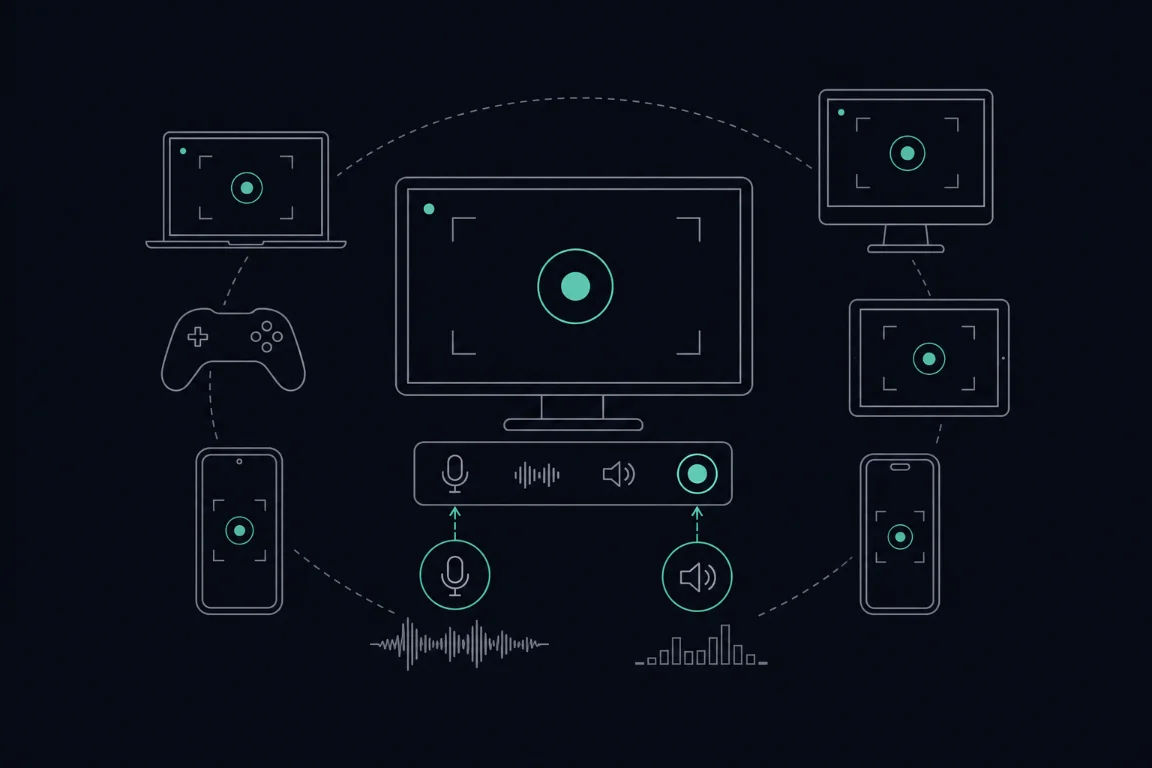
To record your screen with audio, enable both the microphone and system audio toggles before you hit record. On Windows, use Snipping Tool or Xbox Game Bar. On Mac, use the Screenshot Toolbar. On iPhone, add the screen recording tile to Control Center. On Android, pull down Quick Settings. In a browser, use Chrome or Edge's built-in tab capture. Silent recordings are almost always caused by skipping one of those toggles, not a hardware fault.
Every major device has a built-in path. You do not need paid software for most use cases.
Microphone Audio vs. System Audio: What Is the Difference?
Screen recorders expose two separate audio channels. Mixing them up is the most common reason recordings come out silent.
Microphone audio captures sound from your physical mic, whether that is the one built into your laptop or an external mic plugged into the jack. When you narrate over a recording, that narration is microphone audio. If you are wearing headphones with a built-in mic, that mic counts as your microphone source.
System audio (sometimes called internal audio, device audio, or computer audio depending on the platform) captures everything your device is playing back: music, video, notification sounds, and audio from apps. If you are recording a software walkthrough and want the viewer to hear the app's own sounds, you need system audio turned on.
Most recording tools show these as two separate toggles or checkboxes. Enabling only one gives you a partial recording, and enabling neither gives you silence.
A few things worth knowing before you start:
- Turning on the microphone toggle does not automatically capture system audio, and vice versa.
- On Mac, system audio capture has extra steps because macOS does not expose internal audio to third-party apps by default.
- On iPhone, microphone audio is off by default even after you enable screen recording. You have to long-press the Control Center tile to switch it on.
- Headphones do not block either channel. If your headphones have a mic, that mic can still record. System audio is captured at the software level regardless of what is plugged into your headphone jack.
Keep both channels in mind as you follow the platform steps below.
How to Record Your Screen With Audio on Windows 10 and 11
Windows gives you two built-in options: Snipping Tool and Xbox Game Bar. They serve different needs, so it helps to know which one fits your situation before you start.
Using Snipping Tool (Windows 11)
Snipping Tool is the simpler choice for recording your full desktop or a specific region. Note that audio recording requires Windows 11 version 11.2307.44.0 or later, so check your version first if the audio controls are missing.
- Open Snipping Tool from the Start menu or press Windows + Shift + S, then switch to the video camera tab at the top of the window.
- Click the microphone icon in the toolbar to choose your audio source. You will see two separate controls: one for your microphone and one for system audio. Enable whichever channels you need.
- Draw a selection around the area you want to record, or click the full-screen option.
- Click Start and give it the three-second countdown.
- When you are done, click Stop in the toolbar. The recording saves automatically to your Snipping Tool gallery.
The microphone and system audio toggles work independently. To capture both your voice and sounds from an app, turn on both before you hit Start.
Using Xbox Game Bar (Windows 10 and 11)
Xbox Game Bar works differently from Snipping Tool. It records the foreground application window only. It cannot record the full desktop, File Explorer, or the Start menu. If you need to record across multiple windows or your entire screen, use Snipping Tool instead.
- Open the app or window you want to record and bring it to the foreground.
- Press Windows + G to open Game Bar.
- In the Capture widget, click the microphone icon to toggle your mic on or off. To include system audio, check that the volume slider next to the speaker icon is not muted.
- Click the record button (the circle) or press Windows + Alt + R to start.
- Press Windows + Alt + R again to stop. The clip saves to your Videos/Captures folder.
Game Bar's audio panel shows separate sliders for your microphone and for the application's own audio output. Set the sliders before you start recording, not during, to avoid volume jumps in the final file.
Which Tool Should You Use?
Use Snipping Tool when you need to record your full desktop or a specific region. Use Xbox Game Bar when you are capturing a single application window, particularly a game or media player, and want per-app audio control.
Screen Recording on Mac With Audio
Mac's built-in Screenshot Toolbar handles screen recording well, but system audio capture has a catch that trips up many users.
Using the Screenshot Toolbar
- Press Command + Shift + 5 to open the Screenshot Toolbar.
- Choose either "Record Entire Screen" or "Record Selected Portion" from the options along the bottom.
- Click Options. Under the Microphone heading, select your microphone from the list. If you want to capture only your voice, stop here.
- Look for a separate "Internal Audio" or system audio option in the same Options menu. On macOS Sequoia (15) and later, Apple added native internal audio capture, so this option appears without any extra software. On older macOS versions, this option is absent, and you will need a virtual audio driver such as BlackHole to route system audio into the recorder.
- Click Record.
System Audio on Older macOS Versions
If you are on macOS Ventura (13) or Monterey (12), the Screenshot Toolbar does not capture system audio on its own. Installing a free virtual audio driver and setting it as your output device is the standard workaround. The driver creates a loopback route so the recorder can see the audio stream.
Recording With Headphones on Mac
Wearing headphones does not prevent microphone capture. Your Mac treats the headphone mic as a standard input device, so it appears in the Microphone list inside Options. Select it there and your voice records normally. System audio capture works at the software level and is unaffected by what is plugged into your headphone jack.
Browser-Based System Audio on Mac
If you prefer to record inside a browser rather than using the Screenshot Toolbar, system audio capture on Mac requires Chrome 141+ or newer. Earlier Chrome versions and most other browsers do not expose the system audio channel on macOS. The next section covers browser recording in full.
How to Screen Record on iPhone With Audio
iPhone's built-in screen recorder is off by default. You need to add it to Control Center first, and then separately enable the microphone before each recording.
Turn On Screen Recording in iPhone (Add the Tile)
- Open Settings and tap Control Center.
- Scroll down to the "More Controls" list and tap the green plus icon next to Screen Recording. The tile moves to your included controls.
- Swipe down from the top-right corner of your screen (or up from the bottom on older iPhones with a Home button) to open Control Center.
Enable Microphone Audio Before You Record
This step is where most people end up with silent recordings. The screen recording tile captures system audio by default, but microphone audio stays off until you switch it on manually.
- In Control Center, long-press the Screen Recording tile (the filled circle icon).
- A panel appears showing a Microphone Audio button at the bottom. Tap it so it turns red. The label changes to "Microphone Audio On."
- Tap Start Recording. A three-second countdown begins, then recording starts.
- To stop, tap the red status bar at the top of the screen and confirm, or return to Control Center and tap the tile again.
Your recording saves to the Photos app automatically.
Can You Screen Record With Headphones on iPhone?
Yes. If your headphones have a built-in microphone, your iPhone treats that mic as the active input when the headphones are connected. Long-pressing the Screen Recording tile and enabling Microphone Audio will pick up audio through the headphone mic, not the phone's built-in mic. System audio is captured at the software level regardless of what is plugged in, so music or app sounds record either way.
To capture system audio only with no narration, skip the long-press step and just tap the tile normally.
How to Screen Record on Android
Android has a built-in screen recorder on most devices running Android 10 or later. The exact labels vary by manufacturer, but the general path is the same.
- Swipe down from the top of your screen once or twice to fully expand Quick Settings.
- Look for a tile labeled "Screen Recorder," "Screen Record," or similar. If you do not see it, tap the pencil or edit icon to add it from your available tiles.
- Tap the Screen Recorder tile. A prompt appears asking what audio you want to capture. You will typically see three options: no sound, device audio (system audio), or device audio plus microphone. Choose the one that fits your needs.
- Tap Start (or the equivalent on your device). A countdown runs, then recording begins.
- To stop, pull down the notification shade and tap the stop button in the screen recorder notification, or tap the floating stop icon if your device shows one.
The recording saves to your Gallery or Photos app. On Samsung devices, the tile is labeled "Screen Recorder" and the audio prompt appears as a separate settings panel before the countdown. On Pixel devices, the option to include device audio and microphone appears in the same start dialog. If your device does not show a built-in tile at all, your manufacturer may have removed it, and a third-party app from the Play Store is the next option.
Browser-Based Screen Recording in Chrome and Edge
You can record your screen directly in a browser without installing any software. Both Chrome and Edge include built-in tab capture through the getDisplayMedia API, which lets a web-based recording tool access your screen and audio.
- Open Chrome or Edge and go to a browser-based screen recording tool or a site that uses the browser's capture API.
- When prompted, click Share Screen or Start Recording. A system dialog appears asking what you want to share: a browser tab, a window, or your entire screen.
- To capture audio from a specific browser tab, select the Tab option. Check the "Share tab audio" checkbox that appears in the same dialog before confirming.
- Click Share. Recording starts immediately.
- To stop, click the Stop Sharing button in the browser bar or return to the recording tool and click Stop.
Selecting a Window or Entire Screen instead of a Tab often gives you no system audio on Mac, because macOS restricts that channel at the OS level. On Mac, capturing tab audio specifically works around this restriction, but capturing full system audio in a browser on Mac requires Chrome 141+. On Windows, system audio capture through the browser is more broadly supported across both tab and window share modes.
Edge follows the same dialog flow as Chrome and supports tab audio capture on both Windows and Mac.
When You Need More Control: Advanced Recording With OBS Studio
OBS Studio is a free, open-source desktop app for users who need more than a built-in recorder can offer. It lets you pull in multiple audio sources at once, mix them independently, and set manual bitrate values for the output file. That combination makes it the standard choice for anyone producing tutorials, software demos, or recordings that need to meet a specific quality threshold.
The most practical decision point is bitrate. For a high-quality 1080p recording at 60fps, a bitrate of 4,000 to 6,000 Kbps is the accepted range. Built-in recorders on Windows and Mac do not expose that control directly, but OBS does, through its Output settings panel.
Setting up audio in OBS requires manual configuration. You add each source separately: a Desktop Audio source for system audio and a Mic/Auxiliary source for your microphone. Each source gets its own volume fader in the Audio Mixer, so you can balance narration against app sounds before you record. Per sources cited for OBS, the learning curve is steeper than any built-in tool, but the control is proportionally greater.
OBS becomes the right choice when you need multi-source audio mixing, precise bitrate control, or recordings you plan to publish at a defined quality spec.
When a Screen Recording Needs to Become a Support Request
Sometimes a screen recording is not a personal project. It is how you show a support team exactly what went wrong. According to ClickUp's 2025 reporting, 83% of people would rather watch a video than read text to learn about a service or product, which helps explain why video-based support requests resolve faster than written descriptions.
One approach for this use case is a browser-based recording tool that requires no app or extension. The customer records directly in the browser, and the recording lands in the support team's workflow already transcribed and paired with a draft answer. An AI layer can also guide the customer during recording to capture the right context on the first attempt, which reduces the back-and-forth that text threads create.
Prices and plan limits verified as of October 2026.
FAQs
Why is my screen recording silent?
The most common cause is that neither the microphone nor the system audio toggle was enabled before recording started. On every platform, these are separate controls. Check that you enabled the channel you needed: microphone for your voice, system audio for sounds from apps or video. On iPhone, microphone audio is off by default and requires a long-press on the Control Center tile to switch it on.
Can I screen record while wearing headphones on a Mac?
Yes. Your Mac recognizes headphone microphones as standard input devices. Open the Screenshot Toolbar with Command + Shift + 5, click Options, and select your headphone mic from the Microphone list. System audio capture is handled at the software level and is not affected by what is plugged into your headphone jack.
Does screen recording capture audio from headphones on iPhone?
It depends on which audio channel you mean. System audio, meaning sounds from apps and media, records regardless of whether headphones are connected. Microphone audio, meaning your voice, is captured through whichever mic is active. If your headphones have a mic and are connected, iPhone routes microphone input through them. Long-press the Screen Recording tile in Control Center and enable Microphone Audio to include it.
How do I record internal audio on a Mac without extra software?
On macOS Sequoia (15) and later, the Screenshot Toolbar includes a native internal audio option under Options. Open it with Command + Shift + 5, click Options, and look for the system audio or Internal Audio source. On older macOS versions, this option does not appear and you need a virtual audio driver to route internal audio into the recorder.
What video bitrate should I use for a high-quality screen recording?
For 1080p at 60fps, a bitrate of 4,000 to 6,000 Kbps produces high-quality output. Built-in recorders on Windows and Mac do not let you set this manually. If bitrate control matters for your use case, OBS Studio exposes it directly in the Output settings panel.
Conclusion
Recording your screen with audio comes down to one consistent rule: enable both the microphone and system audio toggles before you start, because they are always separate controls. Every major platform has a built-in path. Windows has Snipping Tool and Xbox Game Bar, Mac has the Screenshot Toolbar (with native system audio on Sequoia and later), iPhone needs the Control Center tile plus a long-press to activate the mic, Android uses Quick Settings, and Chrome or Edge handle browser-based capture.
Start with the built-in tool for your device and confirm both audio channels are on before you record. If you need precise bitrate control or multi-source audio mixing, move to OBS Studio. If the recording is meant to show a support team what went wrong, a purpose-built workflow handles transcription and triage automatically, so you can skip the follow-up messages.