Video Messaging Tool That Cuts Reply Time for Teams
Find the best video messaging tool to cut reply time, reduce meetings, and help teams share full context fast with async screen and face recordings.
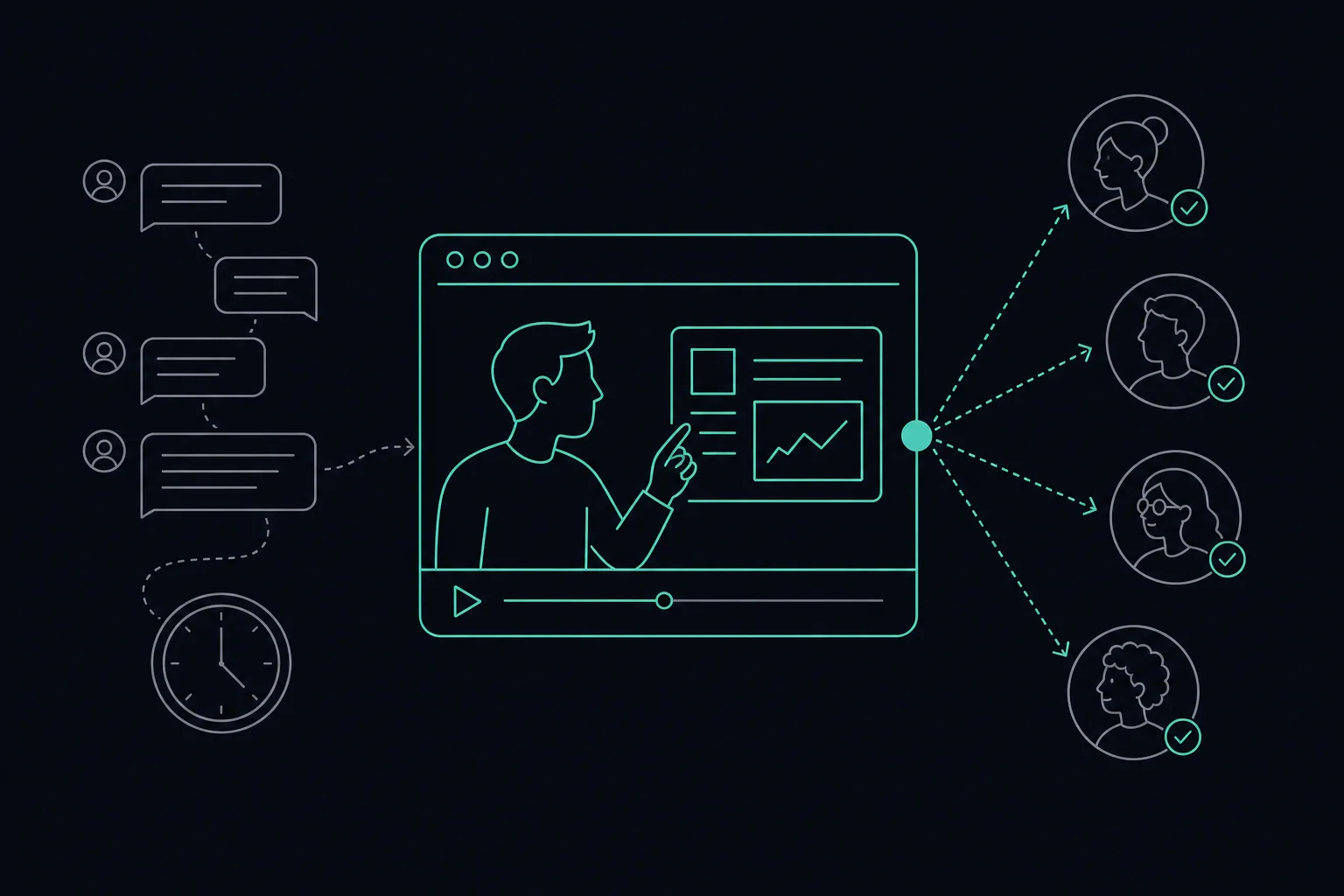
An async video messaging tool replaces slow text threads and unnecessary meetings by letting anyone record a screen, face, or both and share a link instantly. It captures full context upfront, auto-transcribes the clip, and routes it to the right person, so one video can replace several back-and-forth emails.
The real cost of slow replies is not just delay. It is the lost context that forces a follow-up, then another, then a meeting that could have been avoided entirely. Picking a tool matched to your team's actual workflow is what closes that gap. The data in this article covers reply-rate improvements and standups time savings; actual reply-time reductions will vary by team size, message quality, and workflow.
Why Video Messaging Tools Cut Reply Time Faster Than Text
Video carries context that words alone cannot. Tone, screen state, cursor movement, and facial expression all travel in a single clip. A text message describing a bug requires the reader to imagine the problem. A 90-second screen recording shows it.
The numbers back this up. An analysis of 134 million emails found that including a video produced a 26% increase in reply rates compared to text-only emails. That figure comes from secondary reporting via pixelwand.io, not the original Salesloft dataset, but the direction is consistent with other data. In a study of 8,385 prospects, using a personalized video as the first touchpoint achieved a 40.4% reply rate compared to just 28.8% for text-only outreach.
Time savings compound on internal teams too. A test on a seven-person engineering team found that replacing daily standups with Loom recordings saved roughly 64 minutes per person each week. Across a 10-person team, that is more than 10 hours recovered every week without a single canceled calendar invite.
Video only saves time when the recording captures the right context on the first attempt. A rambling four-minute clip with no clear question at the end performs worse than a focused 90-second one. The tool you choose should help the sender structure the message, not just record it.
How Does Video Messaging Work?
The mechanics are simple. A sender opens a video messaging tool, picks what to record (screen, webcam, or both), and hits record. When they stop, the tool generates a shareable link. The recipient clicks it, watches the clip in a browser, and replies by text, by recording their own video, or both.
Most modern tools add layers on top of that core loop. Auto-transcription converts the spoken content into searchable text, so a recipient can skim a transcript instead of scrubbing through a timeline. AI summaries pull out the key points and action items. CRM integrations push the clip and its metadata directly into a deal record or support ticket, so nothing gets lost in email.
Better tools now prompt the sender before recording, asking what the video is about and who it is for. That prompt takes 20 seconds and sharply reduces the chance the recipient needs to ask a follow-up question. One video, one reply, done.
For support teams specifically, the workflow adds one more step: triage. When a customer records a video of their issue, the tool can classify the problem, draft a suggested answer, and route the ticket to the right agent before any human reads it. That is where the reply-time gains become measurable rather than anecdotal.
Understanding that full loop, record, share, view, triage, reply, is what separates a tool that saves time from one that just adds another inbox.
Top Video Messaging Tools Compared
The options range from lightweight recorders to full sales platforms. Here is how the leading tools stack up.
Loom records your screen, webcam, or both and produces an instant shareable link. It runs as a desktop app and is the most widely used tool in this category for internal team updates. The free tier caps at 25 videos and 5 minutes per recording. Paid plans remove those limits. One practical note: Loom requires aggressive zooming, up to 150%, for code or design reviews because compression can make small text hard to read.
Covideo is built for automotive and dealership teams. It runs as a browser extension and generates VIN-specific videos with AI video agents. Its CRM integrations focus on automotive platforms like CDK and VinSolutions. There is no free plan, only a 7-day trial, and pricing is not publicly listed, per slicey.ai.
Dubb bundles video recording with a built-in CRM and five AI assistants that handle scripting, scheduling, and automated follow-up sequences. It runs entirely in the cloud. The built-in CRM is basic and may not support complex pipelines, and users report a steep learning curve given the dense feature set.
Vidyard focuses on sales prospecting and deal progression. It runs as a browser extension and supports up to 1080p in that mode, with 4K available via the desktop app. The mobile app records camera only, not screen.
Zoom Clips is a feature inside the Zoom desktop app that lets users record and share short async clips. The basic version limits you to 5 recordings and 3 minutes per clip. Expanded recording limits and 4K output require a paid license.
VideoSupport is a browser-based async video tool that lets customers record their issue on any device with no app or extension required. The recording arrives in the support team's workflow already transcribed, AI-triaged, and paired with a draft answer. Its design centers on capturing enough context in the first recording to remove the need for a follow-up question.
Which Video Messaging Tool Is Best for Sales vs. Internal Team Updates?
The best tool depends on what you need the video to do. Sales videos need tracking, CTAs, and CRM logging. Internal updates need speed, searchability, and low friction for the recipient. Those are different problems, and no single tool solves both equally well.
Research reported via pixelwand.io suggests proposals featuring video can achieve up to 41% higher close rates than those without. A separate study of 8,385 prospects found personalized video achieved a 40.4% first-touch reply rate compared to 28.8% for text-only outreach. Those numbers point to sales as the high-return use case, but internal teams recover the most calendar time.
| Tool | Best for | Runs on | AI features | Free tier |
|---|---|---|---|---|
| Loom | Internal async updates | Desktop app | Transcription, summaries | Yes (25 videos, 5 min cap) |
| Covideo | Automotive sales | Browser extension | AI video agents, VIN generation | Not listed |
| Dubb | Sales sequences | Cloud | 5 AI assistants, scripting, scheduling | Not listed |
| Vidyard | Sales prospecting | Browser extension | AI summaries, viewer analytics | Not listed |
| Zoom Clips | Internal updates (Zoom teams) | Desktop app | Basic editing | Not listed |
| VideoSupport | Customer support | Browser (no install) | AI triage, transcription, draft answers | Yes (2 users, 2 videos/month) |
For outbound sales, Dubb and Vidyard are the strongest fits. Dubb includes scripting, scheduling, and automated follow-up sequences; Vidyard includes AI summaries and viewer analytics. Covideo is purpose-built for automotive dealerships and is a poor match outside that vertical.
For internal updates, Loom has a usable free tier and a straightforward record-and-share flow. Zoom Clips keeps everything inside the Zoom desktop app, which reduces the number of tools a team needs to manage.
For customer support, VideoSupport is the only tool in this list built around the triage and draft-answer workflow, where the clip arrives already classified and paired with a suggested response before any agent reads it.
How to Screen Record and Video Yourself for a Team Message
Recording screen and face together gives the recipient both the visual context of what you are showing and the vocal tone that tells them how urgent or complex it is. A few habits make the difference between a clip that gets a fast reply and one that gets ignored.
Choose a tool that supports picture-in-picture. Many tools, including Loom and Vidyard, offer a mode that records screen and webcam simultaneously, placing your face in a small bubble over the screen content. Open your tool and select the "Screen + Camera" mode before you start.
Frame the recording area before you hit record. Close unrelated tabs and notifications. If you are showing code or a dense design file, zoom your browser or application before you start. Loom's compression in particular can make small text illegible at default zoom, per toolstackreviews.io.
Set up your camera and audio. Position your webcam so your face is well-lit and centered. Use a headset or a directional microphone if possible. Background noise is the single most common reason recipients replay a clip or give up and ask a follow-up question instead.
State your purpose in the first 10 seconds. Before you touch the screen, say what the video covers and what you need from the recipient. "I am showing you the checkout bug from ticket 412, and I need you to confirm whether this is a front-end or back-end issue." That one sentence lets the viewer decide immediately whether to watch now or route it to someone else.
Keep the recording under 3 minutes for most messages. Anything longer risks the recipient skimming or skipping. If the topic genuinely needs more time, break it into two clips with clear titles.
Add an AI-assisted review step if your tool supports it. VideoSupport's AI layer guides the customer or sender during recording to make sure the right context is captured on the first attempt, which removes the need for a follow-up clip entirely. For support teams, the recording arrives already transcribed and paired with a draft answer.
Copy the shareable link and paste it directly into your message. Do not attach a video file. A link opens in the browser instantly, on any device, without a download.
How to Send a Video Message That Gets a Reply
Recording a good clip is only half the job. How you deliver it determines whether the recipient watches it, ignores it, or forwards it to someone else.
Write a subject line or message preview that states the ask. "Quick video: approval needed on homepage copy" outperforms "Hey, recorded something for you." The recipient should know what action you want before they press play.
Use a custom thumbnail. Most tools let you choose or auto-generate a thumbnail frame. Pick one where your face is visible and you look engaged. A blank screen or a mid-blink frame reduces play rates.
Keep the video under 90 seconds for a first outreach. An analysis of 134 million emails reported via pixelwand.io found that video increased reply rates by 26% compared to text-only messages. Shorter clips tend to perform better because the recipient can commit to watching without rearranging their schedule.
End with one specific question or action. "Can you confirm by Thursday?" is a reply prompt. "Let me know your thoughts" is not. A single, clear CTA at the end of the clip is the fastest way to get a response.
Send the link where the recipient already works. Paste the video link directly into Slack, a support ticket, or a CRM note so the recipient sees it in context rather than hunting for it in a separate inbox.
Follow up once if you do not hear back in 48 hours. Reference the video in your follow-up: "I sent a 90-second clip on Tuesday about the API error. Did it come through?" That specificity signals you sent something worth watching, not just another check-in.
Free Video Messaging Tool Options: What You Get and Where They Stop
Free tiers exist across several tools in this category, but each one draws a hard line somewhere. Knowing where that line falls before you commit saves a painful migration later.
Loom offers the most generous free tier here: 25 videos with a 5-minute cap per recording. For a small team sending occasional updates, that is workable. Once you hit the cap or need longer recordings, you move to a paid plan.
VideoSupport's free plan sits at $0/month and covers 2 users and 2 videos per month, with no AI reviews included. That is tight for active support teams but enough to test whether the transcription and triage workflow fits your process before spending anything.
Zoom Clips limits the basic version to 5 recordings at 3 minutes each, per zoom.us. Expanded limits and higher-resolution output require a paid Zoom license. Covideo and Vidyard do not list a free tier at all, only trials or paid entry points.
If your volume is low and your messages are short, a free tier can cover real work. If you handle more than a handful of support tickets or sales touches per week, the caps will push you toward a paid plan quickly. The question is not whether free is good enough in theory. It is whether the cap matches your actual monthly volume.
Prices and plan limits verified as of October 2026.
FAQs
What is the best app for sending video messages?
For internal async updates, Loom has a usable free tier and a straightforward record-and-share flow. For sales outreach, Dubb includes automated follow-up sequences and Vidyard includes viewer analytics. For customer support, VideoSupport is built around the triage and draft-answer workflow, where the clip arrives classified and paired with a suggested response before any agent reads it. No single tool leads every category.
What is the lom app and how does it compare to Loom?
"Lom app" is a common misspelling of Loom. There is no separate product called the lom app. Loom is a desktop application that records your screen, webcam, or both and generates a shareable link instantly. If you searched for "lom app," you were most likely looking for Loom or a similar async video recorder.
Can I use a video messaging tool online without downloading anything?
Yes. VideoSupport runs entirely in the browser with no app or extension required, on any device. Dubb also runs in the cloud. Loom and Zoom Clips require a desktop app for full functionality. Vidyard and Covideo run as browser extensions, which means a one-time install but no separate application download.
How long should an async video message be to get the fastest reply?
Keep most messages under 90 seconds for first outreach and under 3 minutes for internal updates or detailed walkthroughs. Shorter clips get higher play-through rates, which means the recipient reaches your question or CTA before losing interest. If a topic genuinely needs more time, split it into two clips with clear, specific titles rather than sending one long recording.
Does video messaging work across different time zones for remote teams?
Async video is built for time-zone gaps. The sender records when it suits them, and the recipient watches when it suits them, with no need to find a shared window. Auto-transcription makes the content searchable and skimmable regardless of when the clip arrives. That combination makes async video more practical for distributed teams than any synchronous meeting format.
Conclusion
An async video messaging tool cuts reply time by replacing the back-and-forth that happens when a text message leaves out context. The tools that do this best capture the right information on the first recording, transcribe it automatically, and route it to the right person without extra steps.
Before picking a tool, decide what your primary use case is: sales outreach, internal updates, or customer support. Check whether the free tier covers your actual monthly volume, and test a recording with screen and camera together to confirm the quality holds up for your content type. If you handle customer support tickets, look specifically at whether the tool can triage and draft a response before a human reads the clip. That single capability is where the measurable reply-time savings come from.